
 Doc Summary

Welcome to the Chrx Digital Solutions Knowledgebase. #
This is a comprehensive documentation system that will show you how to manage all aspects of your hosting account and give you tips and tricks on how to manage your website and domains.
How to Login to cPanel #
Once you’ve ordered your hosting from Chrx, you’ll receive a welcome email with details of how to log in to your hosting control panel with us once your hosting is activated (it should be within a few minutes of your order going through).
If for some reason you don’t receive your welcome email, please get in touch and we can check that everything has gone through OK.
Setting up Email in cPanel #
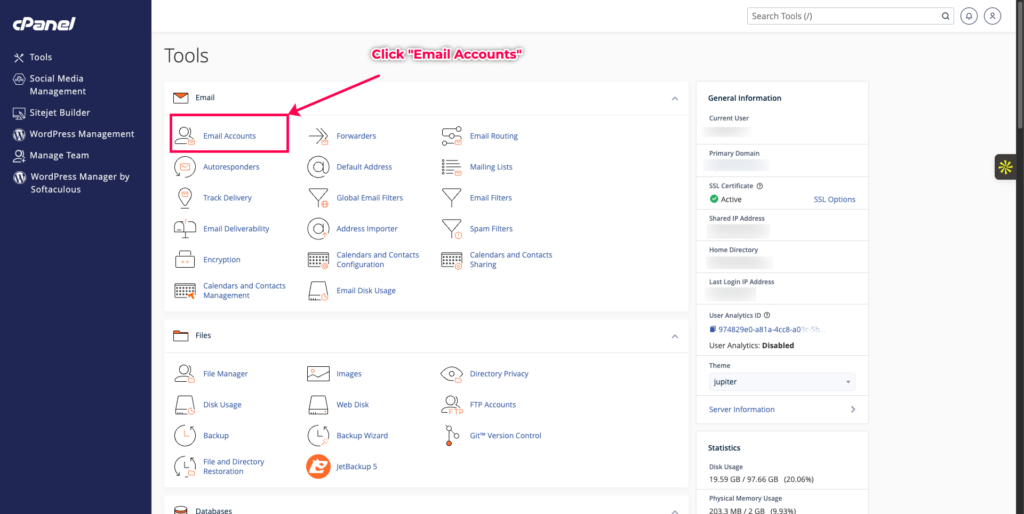
Once you’ve logged in to cPanel, you’ll be presented with a number of icons that enable you to manage all aspects of your hosting.
One of the most common things to get set up straight away is Email – click Email Accounts and from here you can start setting up email addresses @yourdomain.com.
To access your email, you can use an email client like Mac Mail, Outlook or Thunderbird, or you can use webmail. Webmail can be accessed by visiting https://webmail.[yourdomain.com]. You’ll need to log in with the mailbox username and password you created earlier. For any further help getting set up in your email client, contact us.
Installing Applications via cPanel (e.g. WordPress) #
In cPanel, scroll down and find the icon that says `Softaculous Apps Installer. Click the icon of the application you’d like to install, for example – WordPress, Magento, Prestashop, Joomla – and then the system will ask you for some more information. Click ‘Install’ once you’ve entered that and then you’ll be able to log in to the admin area to get started with your application.
Nameservers #
For all websites If you ordered a domain from Chrx with your hosting, your nameservers will be set automatically to link to your hosting with us. However, if your domain is registered elsewhere or you are using another DNS management system like cloudflare, you’ll need to update the nameservers to:-
ns1.mysecurecloudhost.com
ns2.mysecurecloudhost.com
ns3.mysecurecloudhost.com
ns4.mysecurecloudhost.com
Please note that DNS changes can take upto 24 hours the changes to propagate and to see that in your browser.


