
 Doc Summary

This guide shows you how to create a new email account in cPanel, so you can have a professional address like [email protected] for your business. It takes about 5 minutes and you do not need any technical experience.
Before you start #
- Your cPanel login details. If you need help logging in, see Getting started with Web Hosting.
- The domain you want the email address on.
- The name you want for the address, for example info, sales or your first name.
- A strong password you can remember or store safely.
How to create a new email account in cPanel #
- Log in to cPanel.
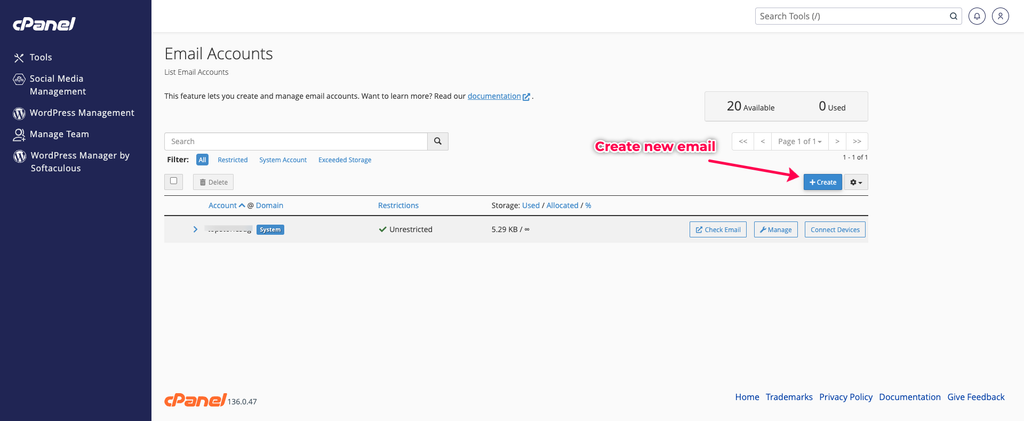
- In the Email section, click Email Accounts.
- Click Create.
- If your hosting account has more than one domain, choose the domain from the Domain menu.
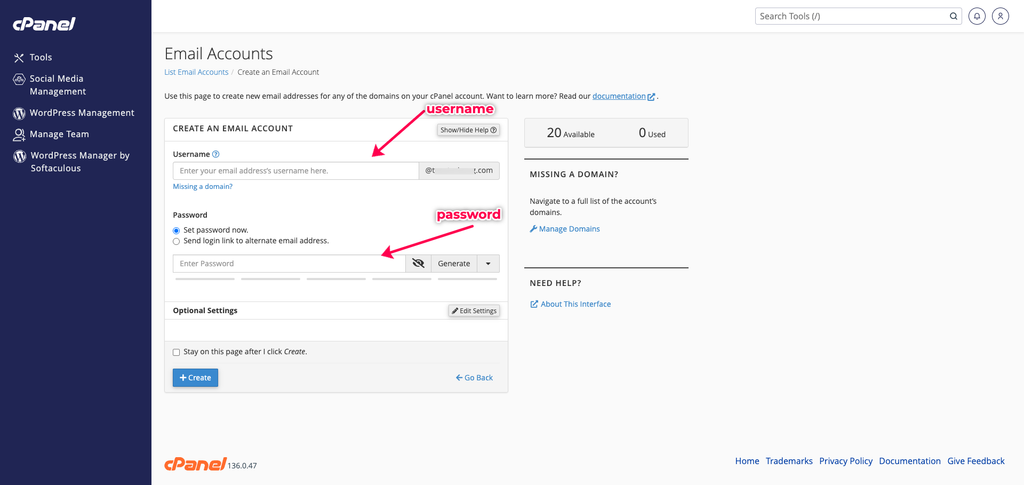
- In the Username box, type the first part of the address. For example, type info to create [email protected].
- Under Password, choose Set password now. Type a password, or click Generate to create a strong one. If your host offers it, you can instead choose Send login link to alternate email address, so the person who will use the account sets their own password.
- Under Optional Settings, set the Storage Space. Enter a size to limit the account, or choose Unlimited.
- Tick Send welcome email with instructions to set up a mail client if you want setup instructions emailed to the new account. This email is not sent if you chose the login link option.
- Click Create. Your new account now appears in the Email Accounts list.
Note: You cannot rename an email account after you create it, and you cannot use cpanel as the account name. To give an account a new address, use the Forwarders page in cPanel or create a new account.
cPanel also publishes its own official guide to creating an email account.
Check that your new email account works #
In the Email Accounts list, find your new address and click Check Email. This opens webmail, where you can read and send messages. Send a test email to another address of yours, and ask a friend or colleague to reply, so you know sending and receiving both work.
Connect your email to your phone or computer #
Next to the account, click Connect Devices. It opens the Set Up Mail Client page, which lists the server settings for your mailbox. To add the account to your phone, follow our guide How to set up your email in the Gmail app (Android and iPhone).
Tips when you create a new email account in cPanel #
- Use a clear, professional name such as info, sales or support for shared mailboxes.
- Use a strong, unique password. The Generate button creates one for you.
- Choose a storage limit that matches how the mailbox is used, and check it from time to time.
- Do not share the password in an ordinary email or message.
Troubleshooting #
If something goes wrong while you create a new email account in cPanel, check these common causes first.
I cannot find Email Accounts in cPanel #
Your hosting provider can turn this page off. If you do not see Email Accounts in the Email section, contact support.
I do not see the Domain menu #
The Domain menu only appears when your hosting account has more than one domain. If you only have one domain, it is chosen for you.
My password is not accepted #
Some hosting providers require a minimum password strength. Click Generate to create a password that meets the requirement, and store it safely.
The username is not accepted #
You cannot use cpanel as the account name. Choose another name, such as info or sales.
Still need help? #
If you still cannot create a new email account in cPanel, contact Chrx Digital support and tell us which step you are on.


